
New Feature: Apple Pay, Google Pay and Cash App Pay
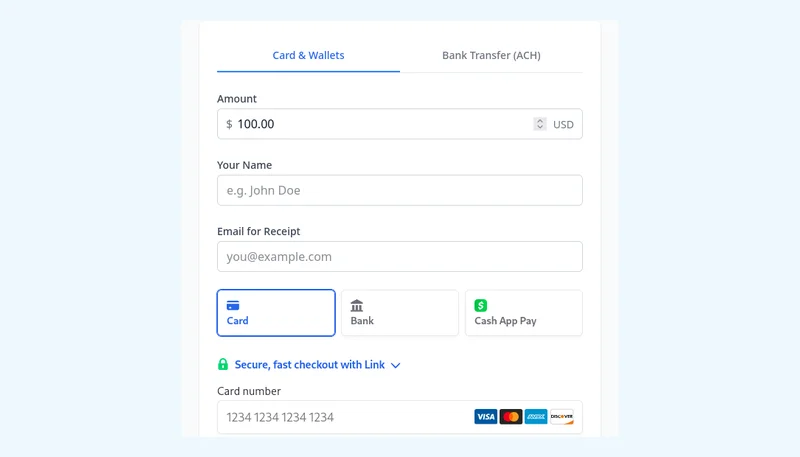
Your clients now have more ways to pay your invoices online. Alongside credit and debit cards and ACH bank transfers, Harpoon's payment page now takes Apple Pay, Google Pay, Link and Cash App Pay.
There's nothing to set up. If your invoices already accept credit and debit cards, the new options are there for your clients today.
What Your Client Sees
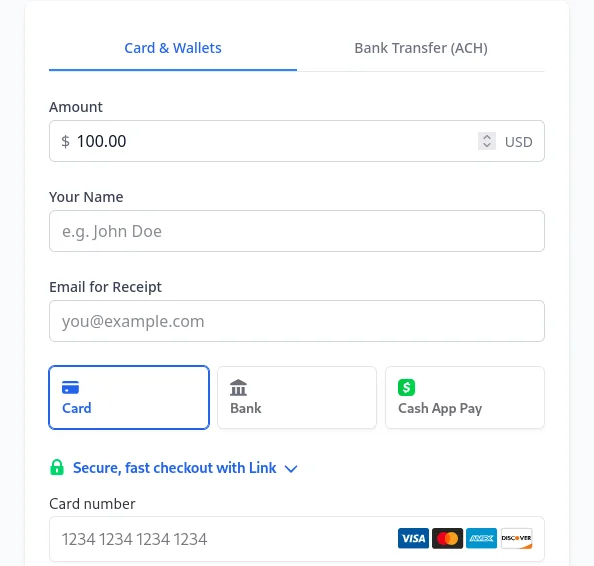
When a client clicks "Pay Invoice", the card tab is now called "Card & Wallets". It shows the options that work on the device they're using:
- Apple Pay on an iPhone, iPad or Mac, when they have a card in Apple Wallet.
- Google Pay in Chrome or on Android, when they have a card saved to their Google account.
- Link, Stripe's saved checkout. A client who has used Link on any other site can pay with a code sent to their phone.
- Cash App Pay for clients in the United States. On a phone it opens Cash App. On a computer they scan a code with their phone.
Typing in a card number works the same as it always has.
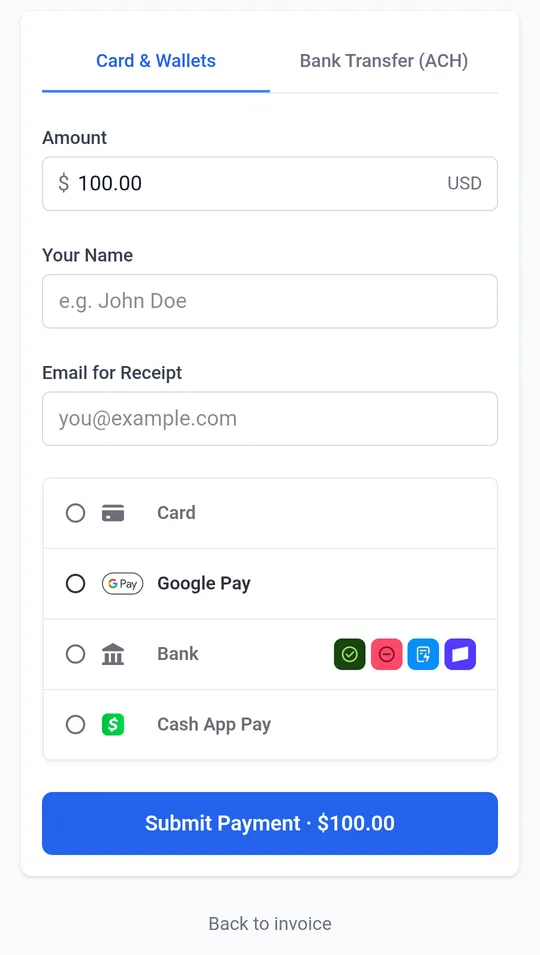
The biggest difference is on a phone. A client who opens your invoice email on the go can now pay it right there, without going to find their wallet.
Nothing to Turn On
The new options come with a setting you already have. On your Invoice Settings screen, "Accept credit & debit cards" now covers cards and wallets together. The same checkbox on an individual invoice, under "Customize", works the same way.
Cash App Pay appears on invoices billed in US dollars from a US-based Stripe account.
If you haven't connected Stripe yet, here's how to start accepting online payments.
Fees
Harpoon doesn't charge transaction fees on any of these. Stripe charges its usual processing fee. Apple Pay and Google Pay are card payments underneath, so they cost the same as a card. Stripe's pricing page lists the rates for Link and Cash App Pay.
Payments That Record Themselves
We also changed how Harpoon finds out an invoice has been paid.
Before, a card payment was recorded when your client's browser came back to Harpoon after paying. If they closed the tab at the wrong moment, the money arrived but the invoice could sit unpaid in Harpoon until you noticed. Now Stripe tells Harpoon directly, so the invoice is marked paid either way.
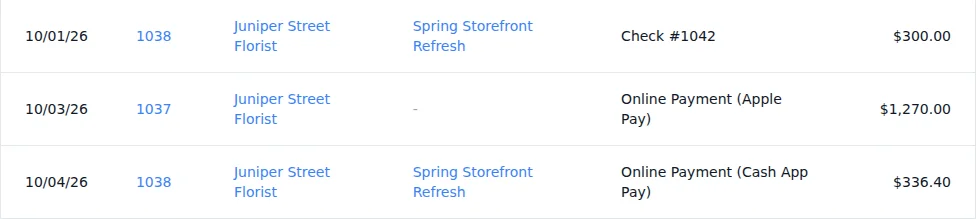
Each online payment also says how it was made. In your payments list and the Payments report you'll see "Online Payment (Apple Pay)" or "Online Payment (Cash App Pay)" next to the amount.
Recurring Invoices and Auto-Billing
Auto-billing works as before, with a saved card or bank account. When a client opts into auto-billing on a recurring invoice, the payment form sticks to cards, because that's what Harpoon saves for future charges.
Give It a Try
Open the client link for any unpaid invoice and click "Pay Invoice" to see what your clients will see. You don't have to pay it.
We hope it gets you paid a little faster. Questions or feedback? Drop us a line at [email protected].