
How do I customize my account?
Not sure which one you're using? The new interface has a dark sidebar and /app/ in the web address; the classic interface has a bright blue sidebar. You can switch at any time: in the new interface, click your name (top right) and choose Switch back to classic; in the classic interface, hover your avatar (bottom left) and choose Try the new Harpoon.
You can customize your Harpoon account on your Settings and Account screens. Click your name in the top right corner to open the user menu, then choose Account or Settings. (You can also click Settings at the bottom of the left sidebar.)
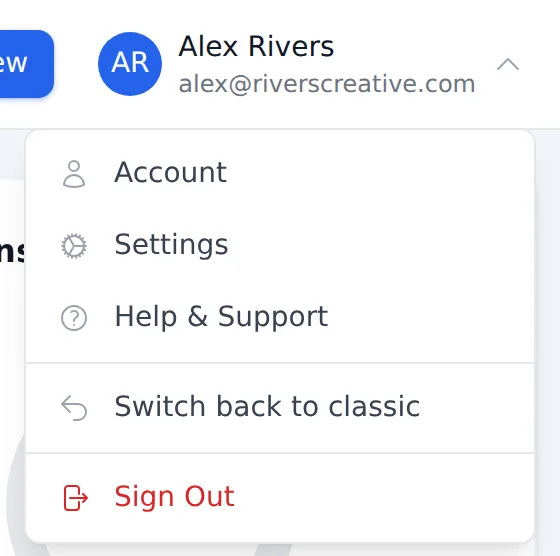
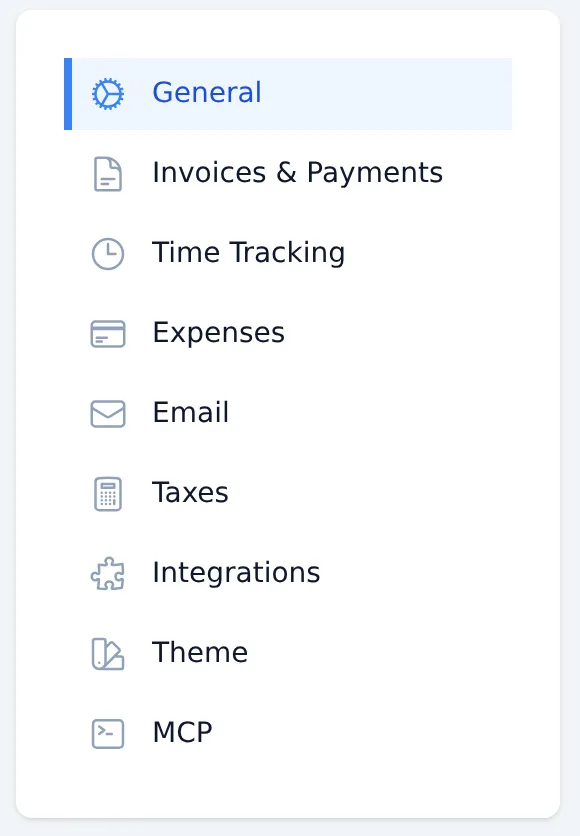
The Settings screens cover everything from the look and default behavior of your invoices to your business’s default hourly rates. They’re grouped into General, Invoices & Payments, Time Tracking, Expenses, Email, Taxes, Integrations, Theme and MCP.
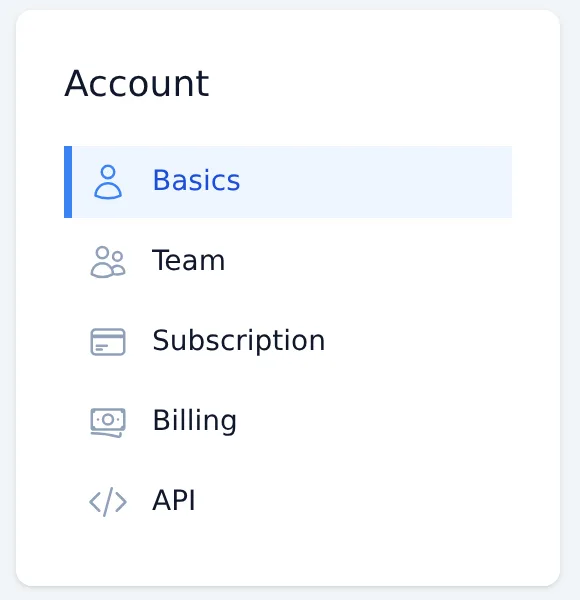
The Account screens cover your personal login details (Basics), your Team, and, for the account Owner, your Subscription and Billing, plus API access.
To learn more about the details of each of these settings view the Settings support articles.
You can customize your Harpoon account within your Settings and Account screens. These screens provide a variety of options for customizing everything in your account, from the look and default behavior of your invoices, to your business's default hourly rates, and everything in between.
To learn more about the details of each of these settings view the Settings support articles.